 ThemeStore
Store
Docs
FAQ
Publishing a theme
How a theme gets into the store, what a version is, and how to update one you already published.
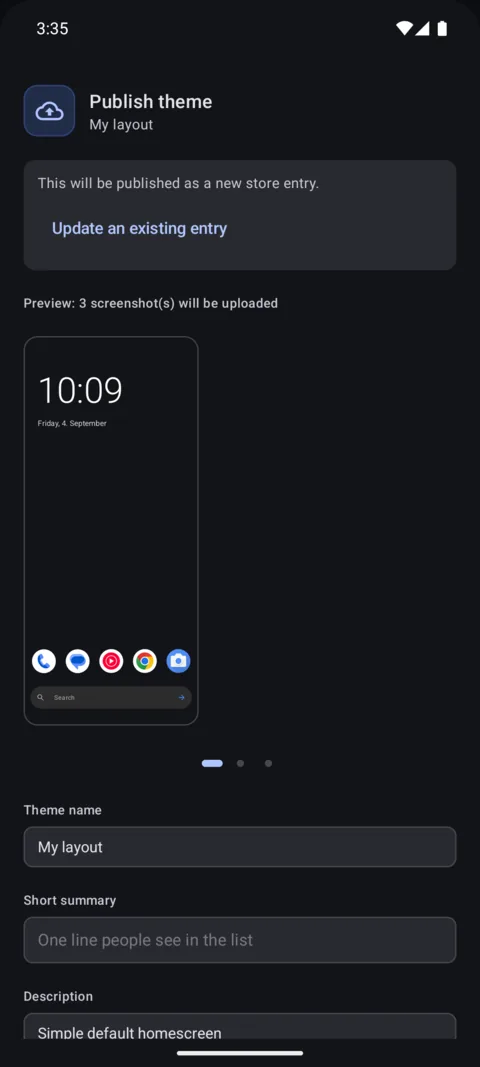
Uploads happen from the app, not from this website. The store needs to know that what it is publishing is a theme the launcher itself accepted, and the app is the only place that can say so. There is no upload form in the browser.
What you send#
- The theme, as a
.jsonfile or a bundle. - A name and a description.
- One to three categories and any tags.
- A licence, the attribution your licence requires, and the attestation that you have the right to publish this.
- Screenshots, up to eight.
Screenshots can be rendered for you: the app draws your theme exactly as the launcher would, without your wallpaper, your apps or your notifications. That is usually better than a real screen capture, because it shows the theme rather than your phone.
What is removed for you#
Two kinds of entry are stripped from the theme file on the way out, and kept out of the rendered screenshots as well:
- Pinned shortcuts, the web apps and bookmarks a browser put on your home screen. They are meaningless on somebody else's device, and behind them stand pages you visited. See web apps and pinned shortcuts.
- Your wallpaper, unless the theme carries one of its own.
Everything else goes as it is, package names included, so it is still worth reading your own grids before you publish. A dock built on roles travels; a dock built on the exact apps you happen to have installed does not.
Versions#
Every upload creates a version. A listing keeps its history, so people can see what changed and when, and a version that turns out to be broken does not erase the one before it.
A version can carry release notes that say what changed, in as many languages as you like, up to 500 characters each. English is required as soon as you write any: it is what everyone sees whose language you did not write. Readers get the notes in their own language when you wrote one, otherwise in English. Release notes belong to the version and cannot be edited later, so add your translations when you upload.
Updating a listing means uploading a new version of the same listing, not creating a second one. In the app, publishing an update offers the listing you published from this device; choose it rather than starting a new entry, or you will end up with two listings and a divided review score.
Optionally a link to your own page and to your source repository. Both are reviewed separately; see what review checks.
Before the first upload#
Two pages are worth reading once, and they are the ones that actually bind: the upload and community guidelines, which is what a moderator decides by, and the terms of service, which covers accounts, the licence you grant the store to distribute your work, and what happens when a rule is broken.
Review#
A new version is not public immediately. It is validated automatically against the limits and the blocked schemes, and then looked at by a moderator. See what review checks.
Until a version is approved, its page answers "not found" to everyone but you. That is not a deletion; it means "not released yet".
Withdrawing#
You can unpublish a listing. Existing installations keep working, because a theme lives on the device once it is installed, but it stops being downloadable and stops appearing in search.
Documentation for launcher 0.1.0-alpha Android 12 and later last updated